
Going live, and after
How a town goes live on Cor Pathway 360, and what we keep doing after
The short answer
A town goes live on Cor Pathway 360 in six steps: departments and staff, your own forms, fleet and assets, the public pages, training by department, then one part at a time. After that, the service package keeps it fixed, checked every night and improved every month.
Going live
Six steps, and what the town brings to each
Step 1
Departments and staff
We set up your departments and add your staff, with seasonal workers marked so a winter layoff does not look like missing paperwork.
You bring: Your org chart and your staff list, in whatever form you keep them.
Step 2
Your own forms
We load the inspection forms, checklists and permit forms you already use, so crews see what they know.
You bring: The forms, as paper, PDFs or spreadsheets.
Step 3
Fleet and assets
We add your trucks and equipment with their inspection and service dates, and the assets you want tracked.
You bring: Your fleet list and any asset list you have.
Step 4
The public pages
We set up the problem report page, the permit portal and the booking form for the parts you switch on.
You bring: A link from your website, and the categories and permit types you use.
Step 5
Training by department
Each department is shown its own screens: the queue, the forms and the reports it owns.
You bring: An hour with each department head and the people who will use it most.
Step 6
Live, one part at a time
Parts switch on as each department is ready. Nothing has to change for everyone on the same day.
You bring: A say in the order.
After go-live
What we keep doing in the background
- Anything that goes wrong, we fix
- Your staff call and it gets handled. There is no ticket queue between them and the person who set the system up.
- Two to three improvements every month
- Changes your departments ask for and new features as they ship, so the system you have in year two is better than the one you started with.
- Error checks every night
- Every night the system is checked for errors, failed jobs and anything that did not send, and anything new is fixed.
- Security watched around the clock
- The system is watched 24 hours a day, so nobody is getting in who should not be.
Who does the work
Who does the work
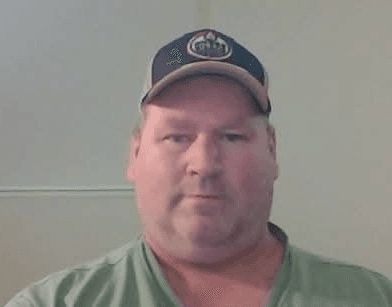
Every build is done by me
I am Blake Cowan. I hold the National Construction Safety Officer designation, and I have done safety work across construction, trucking and oilfield. I have sat on both sides of a COR audit.
Your program is not handed to a junior or an offshore team. I write it, I set it up, and when you call 780-832-5158 it is my phone that rings. I work out of Barriere, British Columbia.
For your IT contractor
Ownership and security
- Accounts in the town's name
- The hosting and the database belong to the town. We are a member the town invites in, and it can remove us at any time.
- Each town's data kept apart
- Every table is locked to its own town at the database level, not just in the screens, so one town's records cannot be read by another.
- Residents never see staff records
- Public pages show a resident their own request or application and nothing else. Bylaw complainants are never shown to the property owner.
- Public forms that resist spam
- The report, booking and sign-up forms check for spam, limit how often one sender can submit, and check uploaded files are what they claim to be.
- Sign-in without passwords for the public
- Permit applicants sign in with a single use link sent to their email, so there is no resident password to leak.
- Your data, exportable
- Records sit in a standard database. Taking them elsewhere is a normal export, with no fee.